2 minutes
Virgin Media Hub 5x Modem Mode Workaround
A quick guide to working around the lack of modem mode on the Virgin Media Hub 5x. This setup is intended for anyone who wants to use their own router or firewall and does not plan to use the Hub for Wi-Fi or the other Ethernet ports.
- Log in to
192.168.0.1 - Configure the DMZ IP
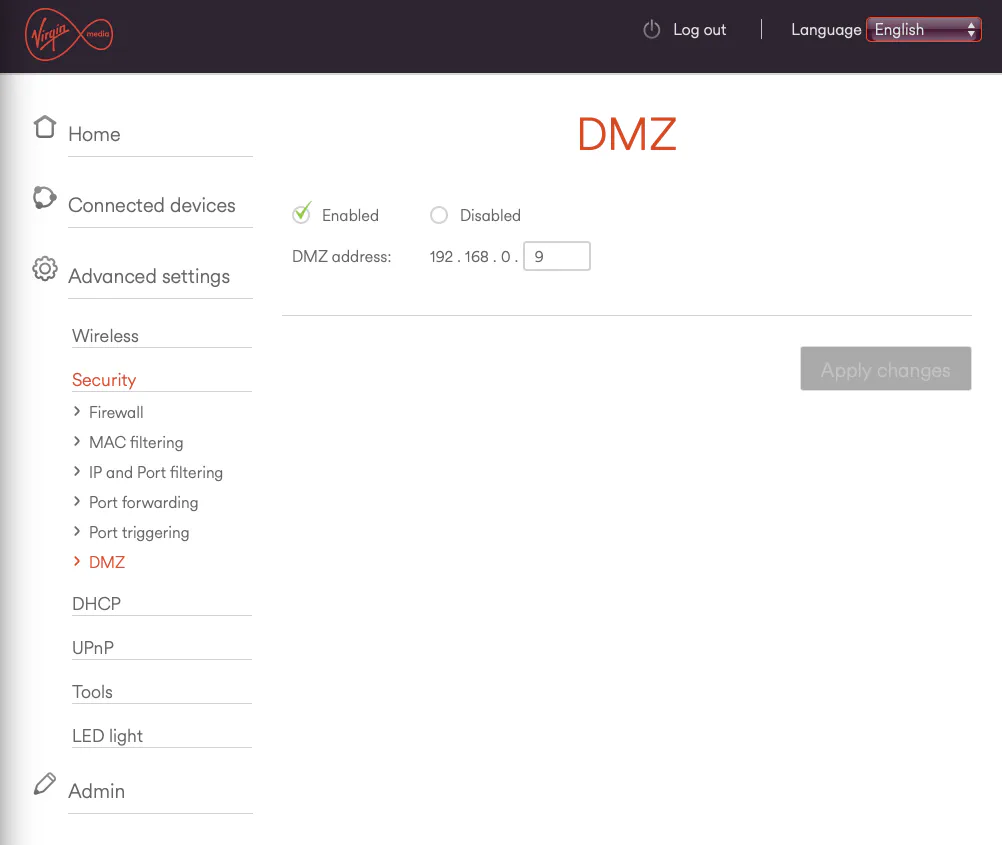
Navigate to Advanced Setting > Security > DMZ and set the IP to 192.168.0.9. This passes all inbound internet traffic directly to that IP.
- Disable firewalls
Navigate to
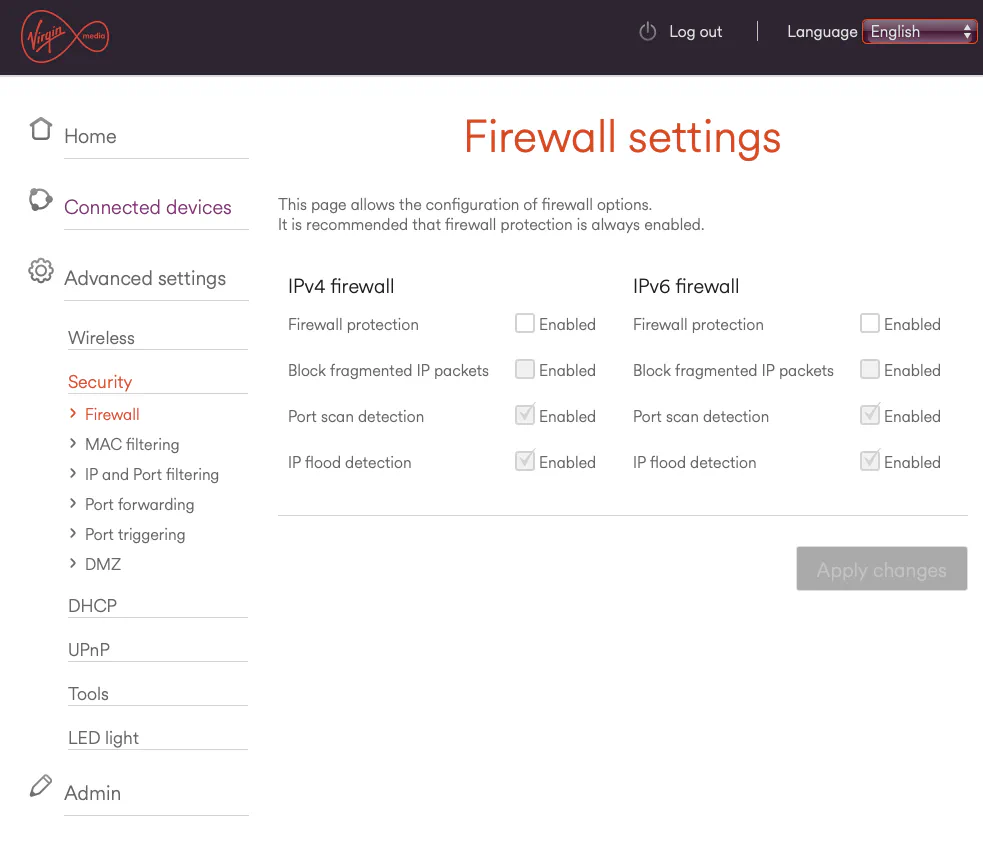
Advanced Setting > Security > Firewalland uncheck Firewall Protection for both IPv4 and IPv6. This step may not be strictly necessary, but I prefer to let my own router or firewall handle all filtering.
- Disable DHCP
Navigate to
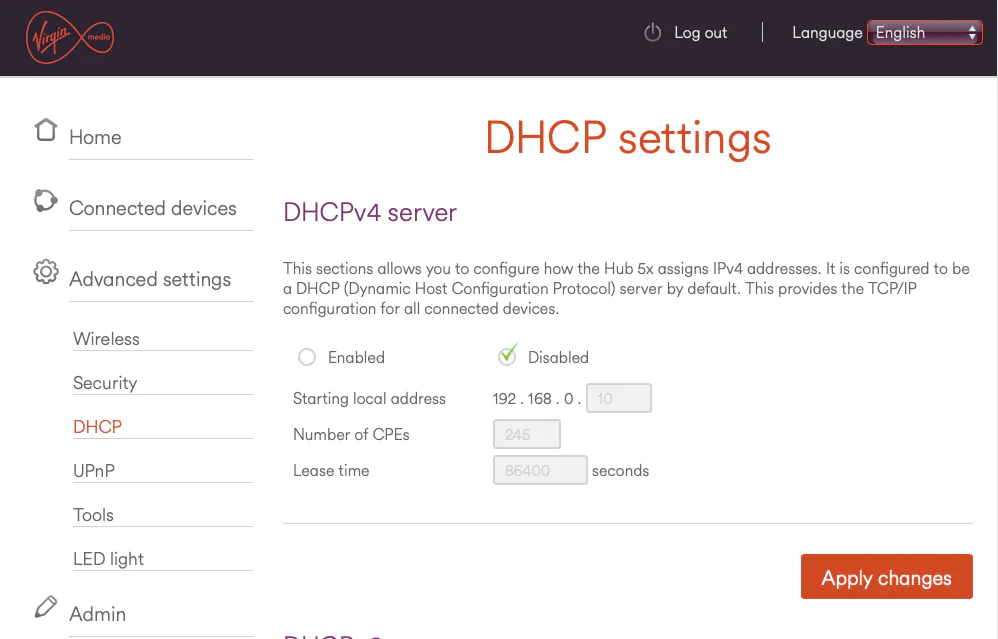
Advanced Setting > DHCPand selectDisabled. Again, this is not strictly required, but it helps avoid confusion later if the other Ethernet ports are used by mistake.
- Disable the Hub’s built-in Wi-Fi
Navigate to
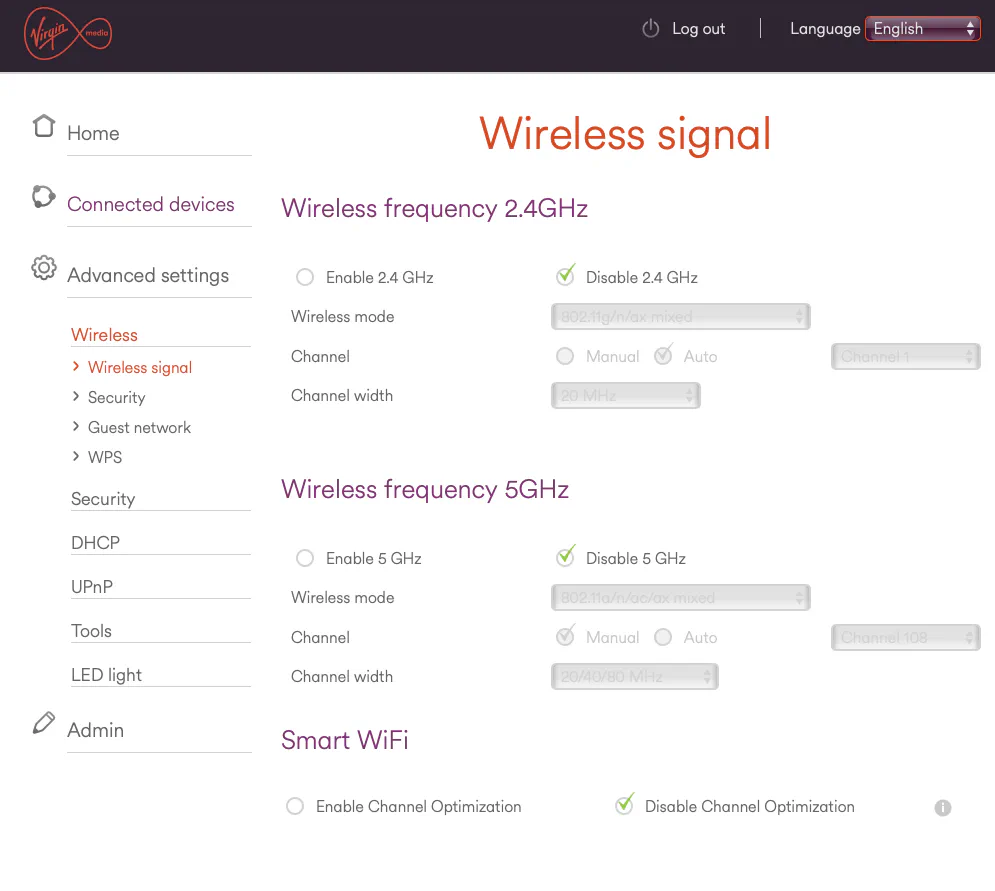
Advanced Setting > Wireless > Wireless Signaland disable both 2.4GHz and 5GHz.
- Configure the 3rd Party router As there are various routers and firewalls out there, the details below are provided as a reference.
Connect your own router’s WAN or Internet port to the 10GbE port on the Hub and leave the other Ethernet ports empty.
WAN IP – 192.168.0.9 (this is the IP you put in the DMZ)
Subnet – 255.255.255.0
Default Gateway – 192.168.0.1
For DNS, you can use a public resolver such as Cloudflare (1.1.1.1 / 1.0.0.1), Google (8.8.8.8 / 8.8.4.4), or even the Hub’s own IP 192.168.0.1. The Virgin Media Hub does appear to intercept DNS queries, so if your hardware supports DoH or DoT it is highly recommended.
virgin-media networking broadband modem-mode hub-5x virgin-media-hub-5x dmz double-nat router xgs-pon full-fibre
281 Words
2023-12-19 00:00